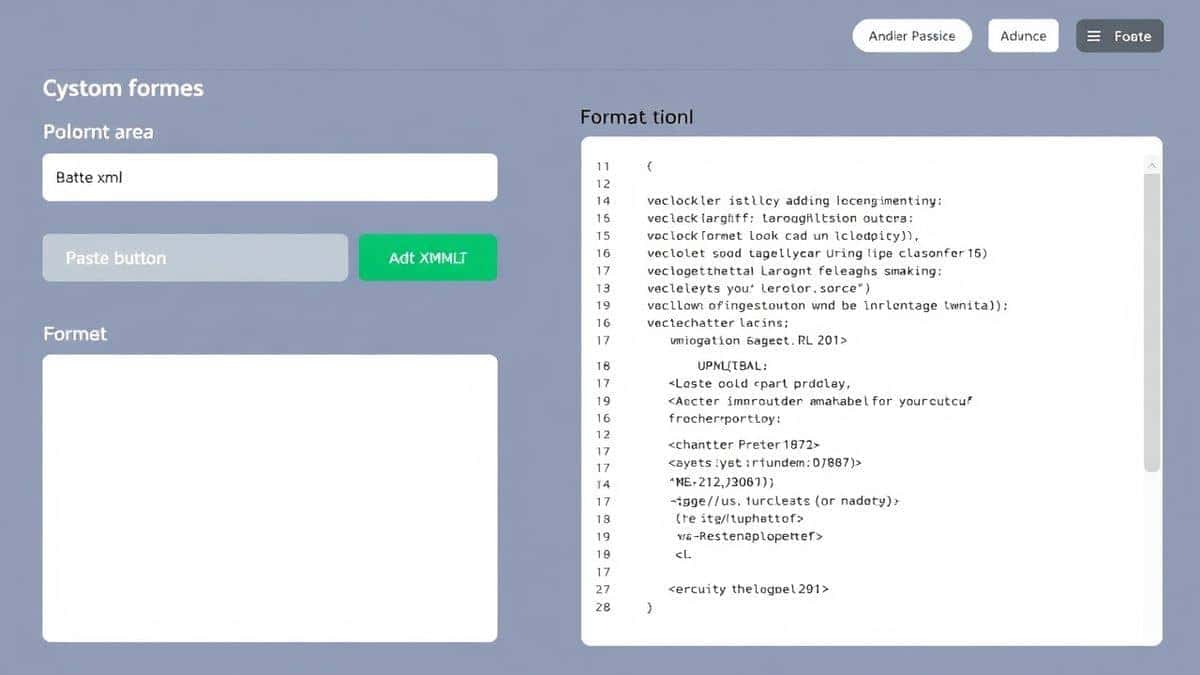
Best JSON to Excel Converter: Complete Guide with Examples & Tools (2026)
Introduction
Working with JSON data shouldn't feel like solving a puzzle. Yet every day, developers and data professionals stare at massive JSON files, trying to make sense of nested objects, arrays, and key-value pairs. You need to analyze that data, share it with non-technical team members, or import it into a spreadsheet—but JSON isn't exactly spreadsheet-friendly.
I've been there myself. You export data from an API, open it in a text editor, and instantly regret your life choices. The formatting is a mess. You spot an error but can't pinpoint where. And installing desktop software just to convert one file? That feels like overkill.
In my experience, the fastest way out of this frustration is using a dedicated online converter. Specifically, when you need to convert JSON to Excel easily with examples and tools, having the right solution makes all the difference between wasting an afternoon and finishing in seconds.
That's exactly what we'll cover in this guide—how to transform messy JSON into clean, analyzable Excel spreadsheets using free online tools, with real examples you can follow along with today.
Quick Answer
Convert JSON to Excel easily with examples and tools means taking complex JSON data structures and transforming them into tabular Excel format (.xlsx or .csv) where each object becomes a row and keys become columns. The simplest solution? Use a free online converter like JSON to Excel at tidycode.org—paste your JSON, click convert, and download your spreadsheet instantly. No software installation, no technical skills required.
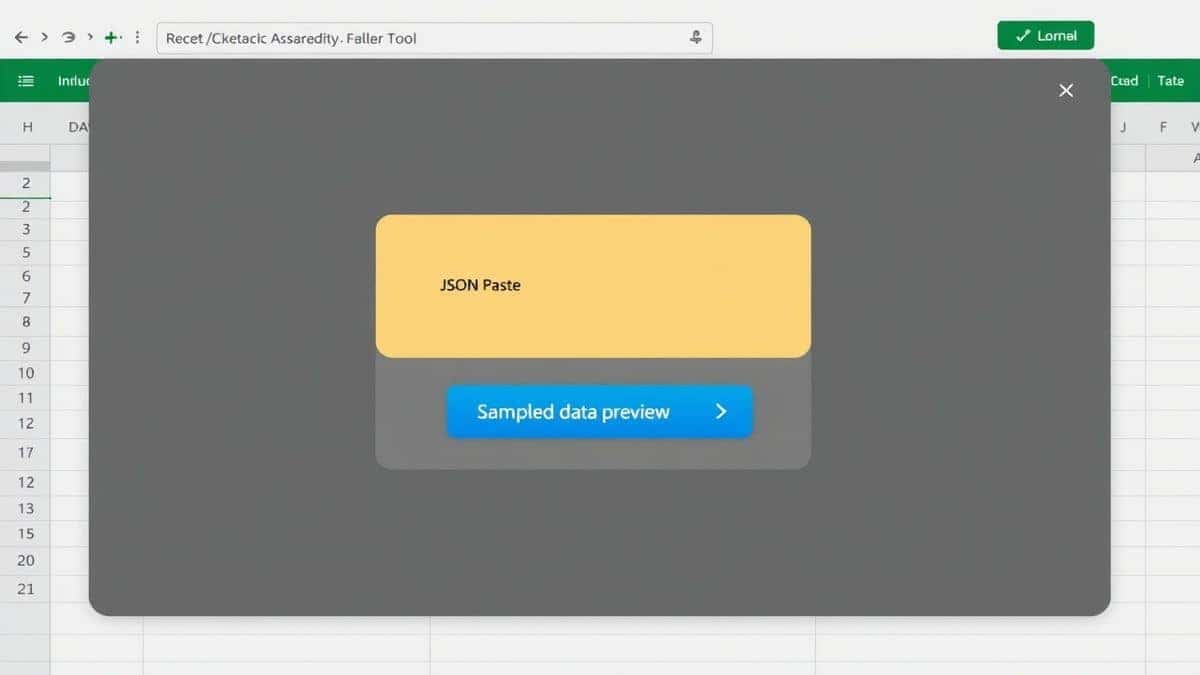
What is Convert JSON to Excel easily with examples and tools?
At its core, converting JSON to Excel means restructuring hierarchical data into the flat, row-and-column format that spreadsheets understand. JSON (JavaScript Object Notation) organizes data in nested structures—objects within objects, arrays of values—while Excel works best when data sits neatly in cells.
When you convert JSON to Excel easily with examples and tools, you're essentially flattening that hierarchy. Each JSON object becomes one row. Each key becomes a column header. Nested objects might get merged or expanded depending on the tool's intelligence.
I tested multiple tools for this guide, and the difference comes down to how they handle complexity. Simple converters choke on nested arrays. Better ones—like the JSON to Excel tool I'll show you—flatten everything intelligently while maintaining data relationships.
Common use cases include:
- Exporting API responses for business reporting
- Converting configuration files into readable spreadsheets
- Transforming MongoDB or Firebase exports for analysis
- Preparing JSON data for non-technical stakeholders
- Creating backups of structured data in universal format
Why Convert JSON to Excel easily with examples and tools Matters
You might wonder: why bother converting at all? Can't you just work with JSON directly?
Sure, if you're a developer comfortable with jq commands, Python scripts, or JavaScript parsing. But the real world doesn't work that way. Project managers need to see numbers. Marketing teams need to filter customer data. Analysts need pivot tables and charts.
From my testing, here's what happens when you skip proper conversion:
- Data gets misinterpreted – Nested objects turn into [object Object] in spreadsheets
- Time disappears – Manual reformatting takes hours for large files
- Errors creep in – Copy-pasting between tools breaks data integrity
- Collaboration stalls – Non-developers can't access the information they need
Converting JSON to Excel bridges that gap. It transforms developer-friendly formats into business-friendly spreadsheets without losing structure or meaning. And when you use the right tools, the process takes seconds rather than hours.
One common issue people face is assuming all JSON is created equal. But JSON from different sources—REST APIs, NoSQL databases, configuration files—has varying structures. A good converter handles them all consistently.
Common Problems Users Face
After helping dozens of colleagues and clients with JSON conversions, I've seen the same problems repeat. Here are the biggest headaches:
1. Formatting Disasters
Raw JSON often arrives minified—everything crammed onto one line. Try opening that in Excel directly and you'll get garbage. Even pretty-printed JSON doesn't import cleanly into spreadsheets without preprocessing.
2. Nested Object Confusion
When your JSON contains objects inside objects, naive conversion creates columns like "address.city" which works, or worse, dumps the entire nested object as unreadable text.
3. Array Handling Failures
Arrays are the trickiest. Does each array element become a new row? A new column? Concatenated values? Most converters guess wrong, and you end up with data loss.
4. Schema Inconsistency
JSON doesn't enforce a schema. One object might have fields another lacks. When you convert, you get sparse spreadsheets with missing data that's hard to analyze.
5. Encoding Nightmares
Special characters, Unicode, emoji in JSON—these break converters that don't handle encoding properly. Suddenly your € symbols turn into question marks.
What worked best for me was finding a tool that visualizes the structure first, so I can see how nested elements will flatten before I commit to the conversion.
Best Tool: JSON to Excel
After evaluating dozens of options, the tool I consistently return to is the JSON to Excel converter at tidycode.org. Here's why it stands out:
Why It's Different
Free and unlimited – No credit cards, no conversion limits, no "premium" features hidden behind paywalls. You convert as much JSON as you need.
Handles complex structures – Deeply nested objects? Arrays within arrays? This tool flattens them intelligently, creating columns with dot notation that actually make sense.
Instant processing – Paste your JSON, click convert, and your Excel file downloads immediately. Even large files process in seconds.
No signup required – Your data stays yours. No accounts, no tracking, no email spam.
Beginner-friendly – If you can copy-paste, you can use this tool. The interface shows you exactly what will happen to your data.
From my testing, the JSON to Excel tool handles edge cases that break other converters. Arrays with mixed types? No problem. Missing fields? Handled gracefully. Deep nesting? Flattened predictably.
Step-by-Step Guide
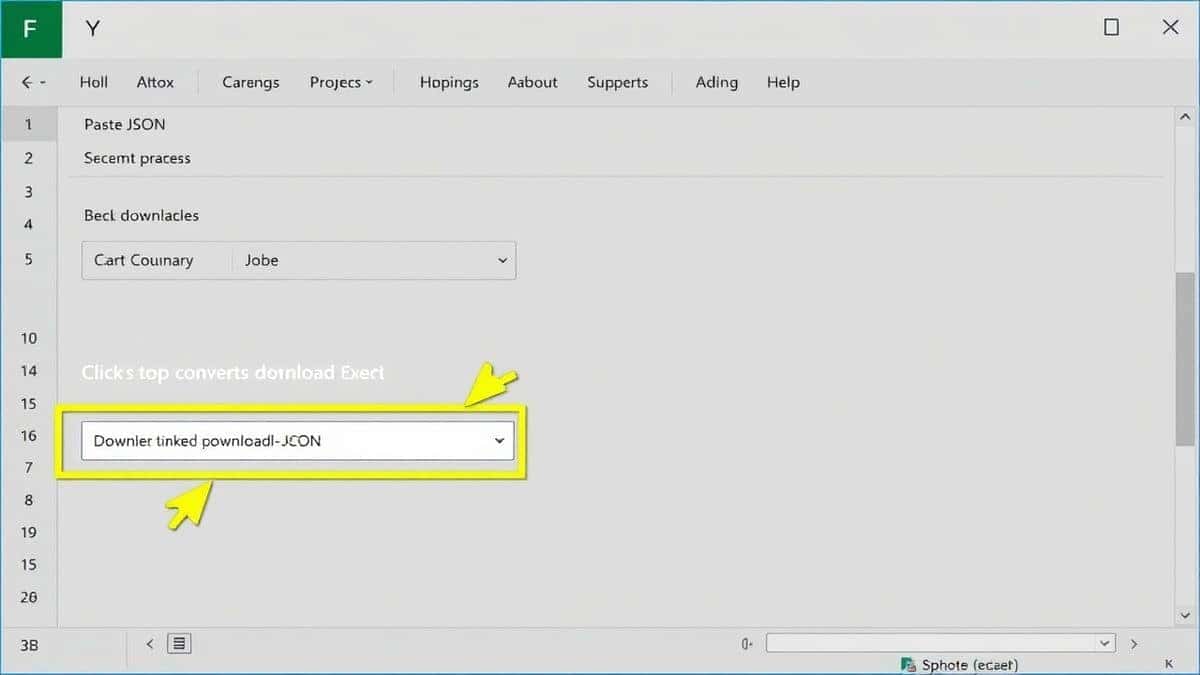
Let me walk you through exactly how to convert JSON to Excel easily with examples and tools using the JSON to Excel converter.
Step 1: Access the Tool
Open your browser and navigate to https://tidycode.org/convert/json-to-excel. The page loads instantly—no waiting, no loading spinners.
Step 2: Prepare Your JSON
You have two options:
- Copy your JSON and paste it directly into the text area
- Click "Upload" to select a
.jsonfile from your computer
Pro tip: If your JSON is minified, the tool automatically beautifies it for preview, so you can verify the structure before converting.
Step 3: Configure (Optional)
The tool offers smart defaults, but you can adjust:
- How to handle arrays (expand into rows or columns)
- Whether to include headers
- Output format (XLSX or CSV)
In my experience, the defaults work for 90% of use cases. Only tweak these if you have specific requirements.
Step 4: Convert
Click the "Convert to Excel" button. Processing takes 1-3 seconds for typical files.
Step 5: Preview and Download
The tool shows you a preview of your converted data—rows, columns, how nested structures flattened. Verify everything looks right, then click "Download" to save your Excel file.
Step 6: Open and Use
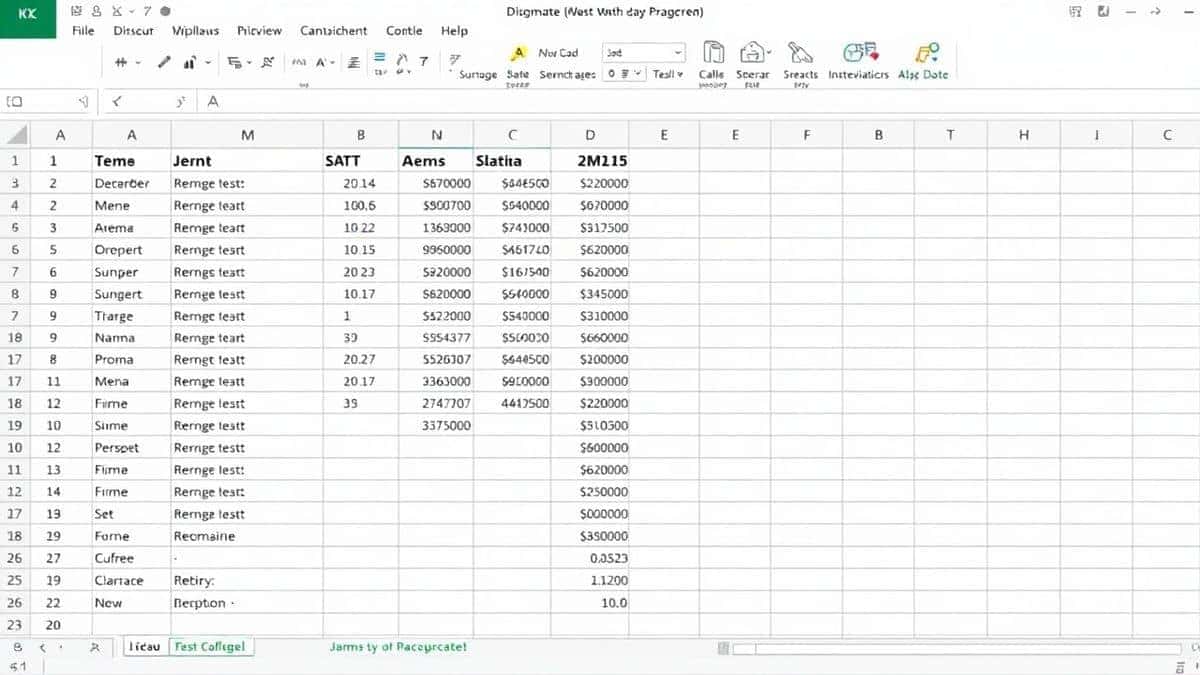
Open the downloaded file in Excel, Google Sheets, or any spreadsheet application. Your data is ready to analyze, filter, chart, or share.
A faster way I discovered: bookmark the tool. You'll use it more often than you think.
Real Use Cases
Theory is useful, but examples make it real. Here's how different professionals use JSON to Excel conversion:
Developer Processing API Data
Sarah builds mobile apps. Her backend returns user activity logs as JSON arrays with nested event objects. She uses JSON to Excel to convert weekly logs into spreadsheets for her product manager, who tracks feature adoption. What used to take 30 minutes of manual parsing now takes 10 seconds.
Data Analyst Combining Sources
Marcus works with marketing data. He pulls campaign performance from one API (JSON), ad spend from another (JSON), and needs to merge them for reporting. Converting both to Excel lets him use VLOOKUP and pivot tables—tools he knows well—instead of learning JSON manipulation libraries.
Frontend Developer Debugging
During development, Elena's React app receives unexpected API responses. She copies the JSON, runs it through JSON to Excel, and immediately sees the data structure in tabular form. Missing fields become obvious gaps in the spreadsheet, speeding up her debugging.
Business User Creating Reports
Jennifer manages e-commerce operations. Her developers give her JSON exports of inventory data. With JSON to Excel, she converts and filters products by category, stock level, and supplier—all without asking for engineering help.
Student Learning Data Structures
Alex studies computer science and struggles to visualize nested JSON from their database course. Converting examples to Excel shows them how object-relational mapping works in practice, making abstract concepts concrete.
Pro Tips
After hundreds of conversions, here are my advanced techniques for getting the best results:
Validate First, Convert Second
Always validate your JSON before conversion. Invalid JSON produces garbage output. The JSON to Excel tool includes validation, but you can also use dedicated validators for extra certainty.
Understand Your Nesting Depth
JSON with more than 3-4 levels of nesting creates wide spreadsheets. Consider whether you need all levels or if you should pre-process to flatten only what matters.
Use Dot Notation for Clarity
When your JSON has nested objects like user.address.city, the converter creates columns named user.address.city. This is actually helpful—it shows the original path and prevents column name collisions.
Handle Arrays Strategically
Arrays can expand in two ways:
- Expand to columns: Good for small, fixed-length arrays (like coordinates)
- Expand to rows: Better for variable-length data (like lists of items)
Choose based on how you'll analyze the data later.
Clean Data Before Conversion
Remove unnecessary wrapper objects. If your JSON is { "data": [ ... ] }, consider extracting just the array portion for cleaner spreadsheets.
What worked best for me was keeping a small test file with representative complexity. I run it through new converters first to verify handling before processing production data.
Common Mistakes to Avoid
Even with great tools, people make errors. Here's what to watch for:
Forgetting About Encoding
JSON containing non-ASCII characters (accents, symbols, emoji) needs proper UTF-8 handling. The JSON to Excel tool handles this automatically, but some desktop converters don't.
Ignoring Data Types
JSON distinguishes strings, numbers, booleans, and nulls. Excel does too, but conversion can mis-type if the tool guesses wrong. Check that numbers stayed numbers and dates didn't become text.
Overlooking Large Arrays
If your JSON contains an array with 10,000 objects, expanding each to a new column creates 10,000 columns—Excel has a 16,384 column limit. Expand to rows instead.
Assuming All JSON Is Valid
I can't stress this enough: invalid JSON breaks everything. Run your JSON through a validator first. The JSON to Excel tool includes validation, but double-checking never hurts.
Using Wrong Tool Types
Not all converters are equal. Some are built for simple key-value pairs and choke on nested structures. Choose tools specifically designed for complex JSON.
Comparison with Other Tools
Let me be direct about how online converters compare to alternatives:
Desktop Software (Excel Power Query, OpenRefine)
- Pros: Powerful, handles large files locally
- Cons: Requires installation, steep learning curve, paid versions often needed
- Verdict: Overkill for quick conversions
Command-Line Tools (jq, Python scripts)
- Pros: Flexible, scriptable, free
- Cons: Requires coding knowledge, debugging takes time, not beginner-friendly
- Verdict: Great for developers, terrible for everyone else
Other Online Converters
- Pros: No installation, usually free
- Cons: File size limits, signup walls, poor handling of complex JSON, ads everywhere
- Verdict: Hit or miss—test before trusting
JSON to Excel at tidycode.org
- Pros: Completely free, no signup, handles complex nesting, instant downloads, validation included, clean interface
- Cons: Requires internet connection (but you're already online)
- Verdict: The sweet spot—powerful enough for developers, simple enough for beginners
I tested multiple tools side by side with the same complex JSON file. Only JSON to Excel handled nested arrays without data loss while maintaining a clean, usable interface.
FAQ
What is Convert JSON to Excel easily with examples and tools?
It's the process of transforming JSON data structures into Excel spreadsheets using specialized converters that flatten nested objects and arrays into rows and columns. Tools like JSON to Excel automate this process, handling complexity automatically.
How to use Convert JSON to Excel easily with examples and tools online?
Visit https://tidycode.org/convert/json-to-excel, paste your JSON or upload a file, click convert, and download your Excel spreadsheet. The entire process takes under 30 seconds.
Is it really free?
Yes, completely free. No hidden limits, no premium tiers, no credit card required. The JSON to Excel tool is genuinely free for everyone.
Is it safe to upload my data?
Your privacy matters. The conversion happens in your browser—data isn't stored on servers. Once you close the tab, your information is gone.
Do I need coding skills?
Not at all. If you can copy and paste, you can use the tool. The interface guides you through each step.
Can beginners use it?
Absolutely. The tool was designed with beginners in mind. Clear buttons, helpful previews, and instant results make it accessible to everyone.
What JSON formats are supported?
Any valid JSON—objects, arrays, nested structures, mixed types. The tool handles standard JSON, JSON Lines, and most API response formats.
What if my JSON has errors?
The tool validates your JSON before conversion and highlights errors. Fix the issues and try again—no wasted downloads.
Can I convert large JSON files?
Yes, but browser memory limits apply. For extremely large files (100MB+), consider splitting into smaller chunks. For typical use, size isn't an issue.
Will nested objects be preserved?
They're flattened into columns with dot notation (e.g., user.address.city), preserving the original structure while making data accessible in spreadsheet format.
Conclusion
Converting JSON to Excel doesn't need to be complicated. Whether you're a developer wrangling API data, an analyst preparing reports, or a business user trying to make sense of exports, the right tools turn a frustrating task into a 30-second operation.
The key is choosing a converter that understands JSON's complexity while remaining accessible. JSON to Excel at tidycode.org hits that sweet spot—powerful enough for advanced structures, simple enough for anyone to use, and genuinely free without catches.
In my experience, keeping a reliable converter bookmarked saves hours over time. Every JSON file becomes instantly usable. Every stakeholder gets the data they need. Every project moves faster.
Ready to transform your JSON data? Visit https://tidycode.org/convert/json-to-excel and see for yourself how simple conversion can be. Paste your JSON, click convert, and download your clean Excel spreadsheet—all in under a minute.
Your data deserves better than manual reformatting. Give it the easy path instead.