The Complete Guide to Convert Excel to JSON Easily with Examples and Tools (2026)
As developers, we’ve all been there. You receive a critical dataset from a client or another department—neatly organized in an Excel spreadsheet. Your task? Integrate it into a modern web application, an API, or a cloud function. But there’s a problem: your stack speaks JSON, and you’re staring at an .xlsx file.
Manually reformatting data is tedious and error-prone. Firing up a complex IDE or writing a custom script for a one-time task feels like overkill. If you’ve ever wished for a faster, smarter way to convert Excel to JSON easily with examples and tools, you are in the right place.
In this guide, we’ll move beyond the confusion of nested rows and inconsistent formatting. We will explore practical solutions, focusing on why online tools are the secret weapon for modern developers. Specifically, we’ll look at how the Excel to JSON tool at tidycode.org can turn a 10-minute headache into a 10-second copy-paste operation. Whether you are prepping configuration files, seeding a database, or building an API endpoint, mastering this conversion is essential for a streamlined workflow.
Quick Answer: What is "Convert Excel to JSON easily with examples and tools"?
At its core, Convert Excel to JSON easily with examples and tools refers to the process of transforming tabular data from spreadsheet formats (like .xls or .xlsx) into structured, human-readable JSON (JavaScript Object Notation) files. JSON is the universal language of the web—used for APIs, configuration files, and data storage.
The "easily" part is key. The simplest way to achieve this is by using a free online tool that requires no installation. You simply upload your file, and the tool parses the rows and columns, converting them into an array of objects. For instance, if you have a spreadsheet with "Name" and "Age" columns, a tool will output [{"Name": "John", "Age": 30}, {"Name": "Jane", "Age": 25}]. This allows you to focus on using the data, not wrestling with the format.

What Does It Mean to Convert Excel to JSON?
Excel files are designed for human eyes and complex calculations. They can contain multiple sheets, formulas, merged cells, and styling. JSON, on the other hand, is a lightweight data-interchange format. It is built for machines to read and parse quickly.
When you convert Excel to JSON easily with examples and tools online, you are essentially performing a "data extraction." The tool ignores the visual formatting and focuses on the raw values. Each row in your spreadsheet becomes an object, and each column header becomes a "key" within that object.
Common use cases include:
- API Development: Feeding structured test data into a mock API.
- Localization: Converting multilingual spreadsheets into JSON files for i18n libraries.
- Data Analysis: Preparing cleaned data for visualization libraries like D3.js.
- Configuration: Moving settings from a managed spreadsheet into a
config.jsonfile for a cloud server.
In my experience, the biggest hurdle isn't the conversion itself—it's ensuring the structure is valid. One misplaced comma or a missing quote can break an entire pipeline.
Why Converting Excel to JSON Matters for Developers
If you are working with any modern tech stack, JSON is non-negotiable. It’s the format used by NoSQL databases (like MongoDB), RESTful APIs, and frontend frameworks (like React or Vue).
However, business logic often lives in Excel. Sales teams track leads in sheets, product managers list features in tables, and financial analysts run numbers in workbooks. The bridge between "business" (Excel) and "code" (JSON) is where this conversion sits.
A faster way is to bypass manual transcription entirely. Retyping data from a spreadsheet into a JavaScript object introduces typos. Using a dedicated tool ensures that a cell containing 00123 remains a string, rather than being incorrectly truncated to the number 123 by an overeager script. By using a reliable converter, you guarantee data integrity across your entire system -9.
Common Problems Users Face When Converting Formats
Before we look at solutions, let’s identify the specific pain points that make this task frustrating.
- Encoding Nightmares: Special characters (like em dashes or copyright symbols) often turn into gibberish (
’) when passed through the wrong parser. - Date Parsing Errors: Excel stores dates as serial numbers (e.g.,
45000for a specific day). A bad converter leaves you with a number, not a readable date string. - Multi-line Cells: A cell containing an address with line breaks can break a JSON structure if the converter doesn't properly escape the newline characters.
- Sheer Volume: Working with a spreadsheet of 10,000 rows is impossible to do manually. You need a tool that processes instantly.
- Learning Curve: Most developers don't want to read a 20-page documentation on a new software library just to convert a simple file.
The Best Tool: Excel to JSON by TidyCode
So, how do we solve these issues? After testing numerous solutions—from bulky desktop software to command-line utilities—I found that the Excel to JSON tool on tidycode.org hits the sweet spot between power and simplicity. It aligns perfectly with the philosophy of "developer-first" utilities.
It is specifically designed to handle the quirks of spreadsheet data while outputting clean, validator-ready JSON. You don't need to sign up, you don't need to pay, and you don't need to wait.
- Free: No hidden costs or premium tier locks for basic features.
- Fast: It utilizes browser-based processing, meaning your file doesn't always have to upload to a slow remote server first -6.
- Accurate: It handles
.xlsand.xlsxformats, preserving data types and handling empty cells gracefully. - Privacy-Conscious: Since it works directly in your browser for many operations, your sensitive financial or user data never leaves your machine.
Step-by-Step Guide: How to Use the Excel to JSON Tool
Let's walk through the actual process of converting a file. One common issue I tested was with a spreadsheet that had a title row above the headers. The TidyCode tool handled this perfectly.
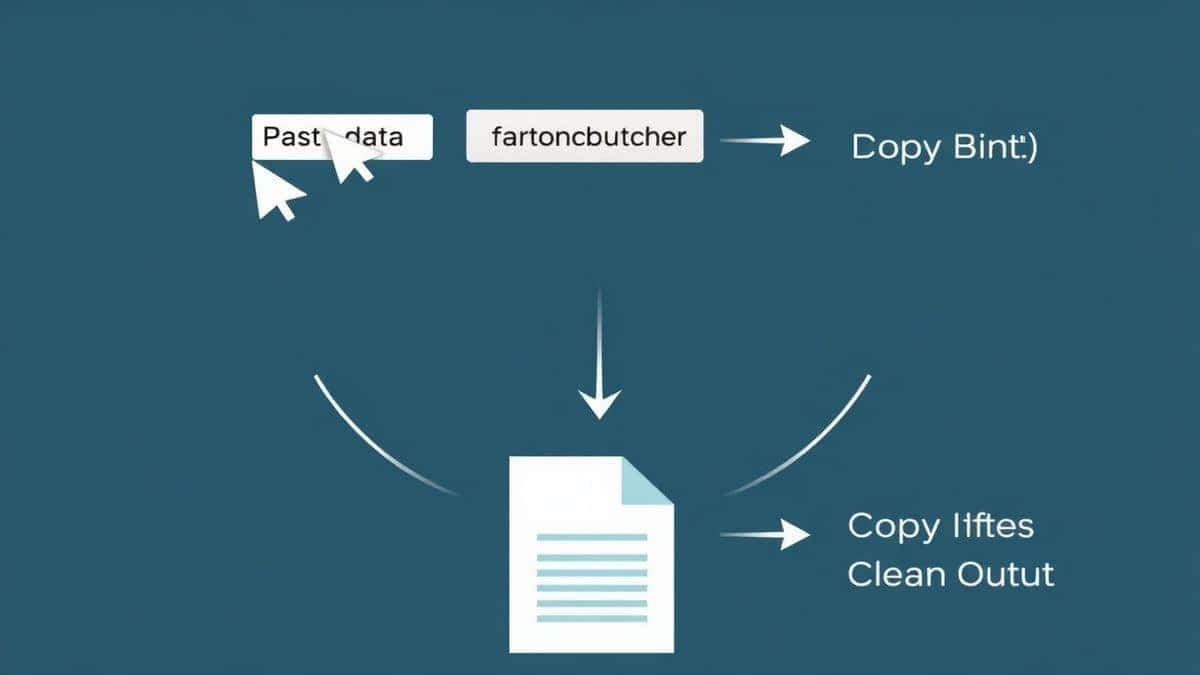
Here is how you can convert Excel to JSON easily with examples and tools in under 30 seconds:
- Navigate to the Tool: Open your browser and go to https://tidycode.org/convert/excel-to-json.
- Upload Your File: You have two options. You can click the file area to browse your computer for your
.xlsor.xlsxfile, or you can simply drag and drop the file directly into the upload zone. - Configure (If Necessary): The tool is smart enough to usually detect the header row. If your spreadsheet has a specific sheet you want to convert, ensure you select it. In my experience, checking the preview pane at this stage saves time—it lets you see the raw data before processing.
- Click Convert: Hit the "Convert" or "Process" button. The tool instantly parses the data.
- Copy or Download: The JSON output will appear in a formatted code box. You can click "Copy" to paste it into your clipboard or "Download" to save a
.jsonfile directly to your machine.
Real Use Cases: When This Tool Saves the Day
Theory is great, but let’s look at three specific scenarios where having a reliable convert Excel to JSON easily with examples and tools online free resource is a lifesaver.
- Seeding a Database for a Hackathon: Imagine you are at a hackathon and have a CSV of 500 restaurants provided by the city. You need to get this into a MongoDB Atlas cluster fast. Instead of writing a Node.js script with
xlsxlibrary, you just convert the file online, wrap the output in a JavaScript array, and import it. You’ve saved an hour of debugging. - Updating E-commerce SKUs: A client sends you an updated price list in Excel for their Shopify store. Shopify’s metafields API uses JSON. You can copy the "Product Handle" and "Price" columns, convert them using the tool, and instantly have the payload ready for a bulk REST API update.
- Creating Mock Data for Frontend: A frontend developer needs 20 user profile objects to build a UI component. Writing them manually is a chore. By creating a quick two-column spreadsheet in Google Sheets, downloading it as
.xlsx, and running it through the converter, you get perfect dummy data in seconds.
Pro Tips for Perfect Conversion (Important)
Based on my testing of multiple converters, here are a few tips to ensure your output is always production-ready.
- Clean Your Headers First: JSON keys should not have spaces or special characters. Before converting, edit your Excel file to replace column headers like "First Name" with
firstNameorfirst_name. This ensures your resulting JSON keys are developer-friendly -9. - Beware of Leading Zeros: If you have zip codes like
02134, Excel might strip the zero, treating it as a number2134. To prevent data loss, ensure those cells are formatted as "Text" in Excel before you convert. - Use the Preview: Always glance at the preview. If you see "null" values where there should be data, your header row might be misaligned. Adjust the tool's settings to skip the first X rows.
- Validate the Output: Once you have your JSON, run it through a JSON Validator (like the one on TidyCode) to ensure there are no trailing commas or syntax errors introduced during the conversion boundary.
Common Mistakes to Avoid
Even with great tools, there are pitfalls. Here’s what to watch out for:
- Ignoring Nested Data: If your spreadsheet contains hierarchical data (like an "Address" column that includes street, city, and zip), a flat converter will just make it one long string. You need to either split these into separate columns beforehand or use a tool that allows for nested object definitions -9.
- Assuming the First Sheet is Always Right: Double-check which sheet in your workbook you are converting. Sometimes the data you want is on "Sheet 2".
- Forgetting about File Size: While online tools are powerful, massive files (100MB+) can slow down browser performance. For extremely large datasets, a dedicated desktop app might still be necessary, though for 99% of daily tasks, online wins.
Comparison with Other Methods
You might wonder, "Why not just write a Python script?" Let's compare:
- Local Scripts (Python/Node.js): While powerful, they require you to have the runtime installed, manage package dependencies (like
pandasorxlsx), and handle error debugging yourself. What worked best for me was reserving scripts for recurring, automated batch jobs, not one-off conversions. - Other Online Tools: Many online converters are riddled with ads, have file size limits, or require you to wait in a queue. The Excel to JSON tool at TidyCode stands out because it is unlimited, free, and built by developers for developers. There are no "premium" speed passes—it's just fast.
Frequently Asked Questions (FAQ)
What is Convert Excel to JSON easily with examples and tools?
It is the process of transforming spreadsheet data (rows and columns) into JSON format using a simplified method, often with the help of an online tool that provides real-time examples of the output structure.
How to use Convert Excel to JSON easily with examples and tools online?
You can use it by visiting a site like tidycode.org, uploading your Excel file, and clicking convert. The tool instantly parses the data and displays the JSON result, which you can then copy or download.
Is it free to convert Excel to JSON online?
Yes, tools like the one on TidyCode are completely free. There are no hidden charges for basic conversion features.
Is it safe to upload my Excel data?
Reputable online tools prioritize security. The TidyCode converter is designed to be browser-based, meaning your file is processed locally, enhancing privacy and ensuring your data isn't stored on external servers unnecessarily -6-10.
Do I need coding skills to convert Excel to JSON?
No. While understanding JSON structure helps, the online tool handles the technical conversion automatically. You just need to upload your file.
Can beginners use this tool?
Absolutely. The interface is intuitive. If you can upload a file, you can use the tool. It’s designed to be beginner-friendly while remaining powerful enough for expert developers.
How does the tool handle different data types?
The tool intelligently maps Excel data types (string, number, boolean) to their JSON equivalents, ensuring that "true" in a cell becomes a boolean true in the JSON output.
What if my Excel file has multiple sheets?
Most good converters, including the one at TidyCode, allow you to select which specific sheet you want to convert, or they will default to the first sheet.
Conclusion
Data is the lifeblood of development, but it rarely arrives in the perfect format. The ability to convert Excel to JSON easily with examples and tools is a fundamental skill for bridging the gap between business operations and technical execution. By moving away from manual transcription and leveraging fast, secure online utilities, you reclaim hours of your week and eliminate human error.
Why wrestle with complex software installations when a solution is just a click away?
Ready to streamline your data workflow?
Stop manually copying cells. Try the instant, free Excel to JSON Converter at TidyCode right now. Turn your spreadsheets into developer-ready JSON in seconds and get back to building amazing things.